I get tons of spam email in Outlook, even though I’ve set up countless rules to deal with it. Instead of spending time on useful work, I have to scan that folder full of junk, in case any legitimate messages ended up in they accidentally. But I finally found a setting that has been a big help this week.
To save time in Notepad++, you can record and run macros. Here’s one of my favourite macros, and the steps for setting it up.
Repeated Tasks
I keep Notepad++ open all day, making notes as I go, and I like to section things off with lines.
It doesn’t take long to type a string of equal signs, or a line of hyphens. But I make lots of lines every day, and those little bits of time, repeated over and over, can add up quickly!
Video: Record and Save Notepad++ Macros
In this short video, I show how to record a Notepad++ macro, then test it, and save it, to use later.
There are step-by-step instructions below the video.
Macro Makes Lines
So, to save my time every day, I made a couple of macros that I can use, to insert each line quickly.
For example, if I press Ctrl + Shift + =, one of my recorded macros enters a long line of 60 equal sign characters, followed by the Enter key, to go to the next line.
If I use that macro 20 times in one day, I can save over 1000 keystrokes!
Record a Macro
Here are the steps that I followed, to create that type of macro in Notepad++.
To start, click in your Notepad++ document, where you want the insertion point
Next, click the Macro command, at the top of the screen.
In the drop-down list, click Start recording.
In your Notepad++ file, slowly and carefully use the keystrokes that you want to record in the macro
For this example, I typed a long line of equal signs
Then I pressed the Enter key, to move to next line in the note
When you’re finished typing, go to the Macro command again, and click Stop recording.
Tip:
It doesn’t matter how slowly you do the steps while you record them!
Notepad++ plays back the keystrokes that you record, as quickly as possible.
Test the Recorded Macro
The next step is to test what you’ve recorded.
Click in the note, to place the insertion point
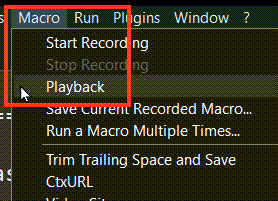
Click the Macro command again, and then click Playback.
The recorded code will run, and it should create a new line, like the one that you recorded.
OK: If the playback worked as expected, you’re ready to move on to the next step.
Not OK: If there was a problem, go through the macro recording steps again.
Take your time while doing the steps, to ensure that there aren’t any problems this time.
Save the Macro
After the playback is correct, it’s time to save your macro.
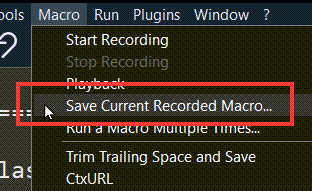
Click the Macro command, then click Save Current Recorded Macro.
When the Save Macro dialog box opens, fill in the required information.
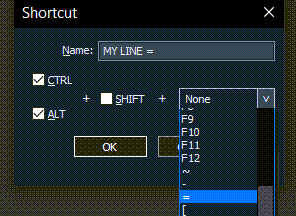
For example, call this macro MY LINE =
Next, choose the shortcut keys that you want to use
For this macro, I used Ctrl and Alt
In the drop-down list of characters, I chose the equal sign.
Finally, to save the macro, click the OK button
Run the Saved Macro
After a macro is saved, you can run it any time you’re working in Notepad++
First, click where you want the text to be inserted
Next, press the macro’s shortcut key combination, to run the macro
In this example, if I press Ctrl+Alt+=, Notepad++ inserts a long line of equal signs, at my insertion point.
Run Macro from Toolbar
If you haven’t used a macro recently, you might not remember its shortcut keys.
Another way to run a macro is with menu commands
First, click where you want the text to be inserted
Next, click the Macro command on the toolbar
Click on one of the macros that’s listed there, to run that macro.
Run a Macro Multiple Times
Most of the time, I only want to run a macro once. But if you want to run a macro multiple times, there’s a built-in command for that.
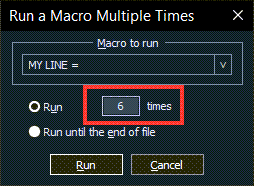
Click the Macro command, then click the Run a Macro Multiple Times command.
When the dialog box opens, click the drop down arrow, and select the name of the macro that you want to run.
Next, click the Run option, and type the number of times that you want to run the macro
OR, clicNextk the Run until the end of the file option
After you’ve entered those settings, click the Run button.
Note: In the screen shot below, I hadn’t clicked the Run option yet
Notepad++ Macro Conflict
When you’re saving a Notepad++ macro, be sure to use a unique shortcut key combination.
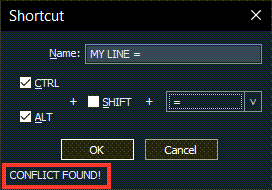
If you use a shortcut key combination that’s already used, a conflict warning will appear at the bottom left of the Shortcut dialog box.
In the screen shot below, I used Ctrl + Alt + = and there’s already a saved macro with that shortcut.
A CONFLIC FOUND warning is showing, at the bottom left of the dialog box.
However, Notepad++ doesn’t stop me from using the shortcut again.
I can click the OK button to save this duplicate macro shortcut
Modify Shortcuts or Delete Macros
To manage your macros, you can open the Shortcut mapper dialog box
Click the Macro command, then click the Modify Shortcuts/Delete Macro
command.
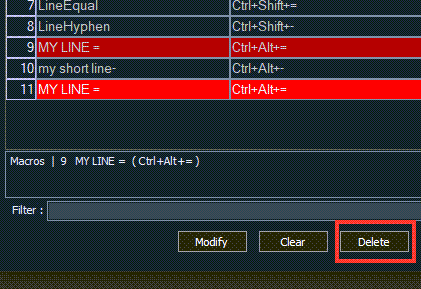
When the Shortcut mapper dialog box opens, it shows a list of the saved macros, along with their shortcut key combinations.
In the screen shot below, two of the macros are highlighted in red, because they have the same shortcut key combinations
Fix Conflicting Macros
If there are conflicting macros, you should fix that situation, to prevent problems.
In the screen shot below, macros number 9 and 11 have the same shortcut keys.
I’ve clicked in macro 11, to select it, and it has a brighter highlighting now.
In the box below the list, it shows the conflict details:
Macros – 9 – MY LINE = (Ctrl+Alt+-)
Because macro 11 is a duplicate of macro 9, I will delete it
At the bottom of the Shortcut mapper dialog box, there are 4 buttons – Modify, Clear, Delete, and Close
With Macro 11 selected, I clicked the Delete button.
A confirmation message appeared:
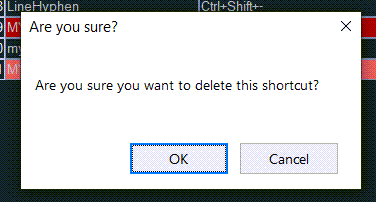
Are you sure?
Are you sure you want to delete this shortcut
There are OK and Cancel buttons, and I clicked the OK button, to delete the conflicting macro
Modify a Macro Shortcut
Another way to fix a conflict is to modify the macro shortcut.
Select the macro in the list
Click the Modify button, to open the Shortcut dialog box
You can change macro name, and/or the shortcut keys
Click OK to complete the change
Cannot Modify Recorded Keystrokes
Unfortunately, you can’t modify the recorded keystrokes.
To use different keystrokes, record a new macro, with the keystrokes that you want to use
Then, save the new macro, and delete the old, incorrect one.
How Will You Use Notepad++ Macros?
Try recording one or two macros in Notepad++ to see if that helps you save time.
What Notepad tasks do you repeat several times a day?
Or, are there daily entries that take a few seconds every day, several time a week?
All day, every day, I make notes in the Notepad++ application while I’m working. First thing in the morning, I open my Daily Notes file, using a desktop shortcut.
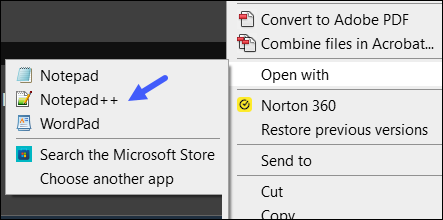
It’s quick and easy – right-click the desktop icon, point to the “Open with” command, and then click on Notepad++.
On my Contextures Excel Tutorials website, there are a few pages with long lists. To make it easier to find information in those lists, I’ve used DataTables, so people can sort the columns, and search for specific text.
Broken DataTable Features
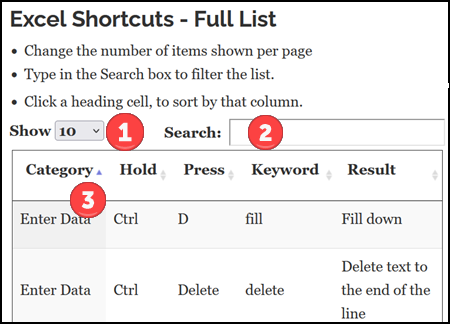
This week, I noticed that, on one page, the table wasn’t showing its interactive features. The Search Box, the column sorting arrows, and the items per page drop down, were all missing.
It took me a while to find and fix the problem, but it’s working correctly now. If you have a similar problem with DataTables, I hope the notes below help you fix the problem.
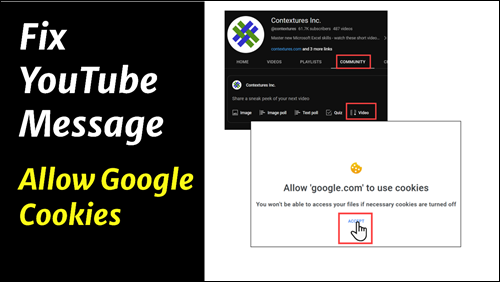
Last week, when I tried to add a video in a Community post, a Google cookies pop-up message appeared. It would NOT close when I clicked the Accept button.
Here’s how I finally fixed the problem, to get ride of the Google cookies pop-up message in YouTube.
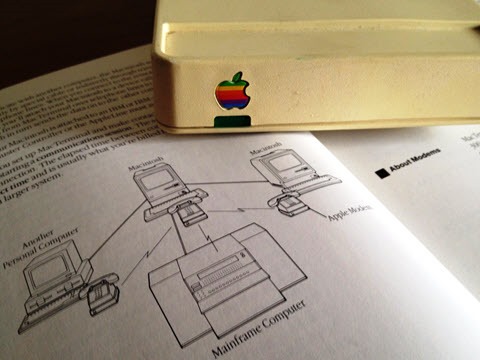
Way back in 1985, I started working from home, using one of the original Apple Macintosh 128K computers. I’ve got a much faster computer and modem now, but was happy with that early computer equipment.
Last week, I learned a new iPhone trick, that lets you extract a person, or other things, from the background in a photo. You could use this to make images for your blog, or for personal projects. Continue reading “Remove Photo Background with Easy iPhone Trick”
There’s sample data for Excel practice on my Contextures site, including one file with hockey player data. Last week, I uploaded a new page with pivot table examples showing ways to work with that data. And that reminded me of my recent trip down the hockey rabbit hole, to learn more about the “What game is that?” guy from TikTok.