Save Your Feedly Feeds

There have been problems with Feedly this week – the site has been up and down, due to a DDoS attack.

I’m glad they’re not giving in to the ransom demands, but I miss being able to check the news stories and blog updates, throughout the day.

Save Your Feeds

If you use Feedly too, you might want to download your RSS feeds list, the next time you’re in there. That way, if you have to move to a different service, you won’t have to start from scratch.

I couldn’t remember the last time that I did that, so I saved mine today. Here are the steps, using Firefox in Windows 8:

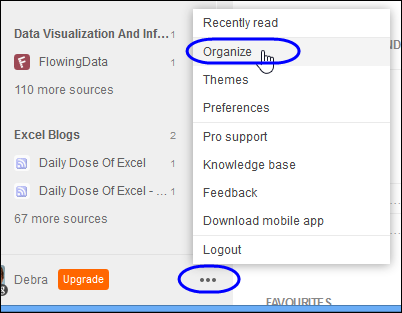
At the bottom of the Feedly window, click the three dot button, and click Organize

feedlyexport01

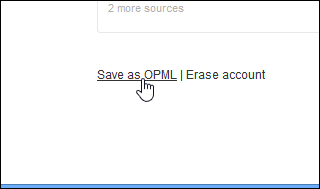
At the bottom of the Organize page, click the Save as OPML link.

feedlyexport02

On the OPML page, click the green button, to download your file.

feedlyexport03

Save the file – I added the date to the file name.

Then, you’ll be able to import that OPML file in a new service, if the problems continue at Feedly.

__________________

Save Time With Draft Messages in Outlook 2013

You probably use the same replies for standard email messages that you get every day, or every week. Here’s a tip for creating copies of draft messages, that saved me some time today.

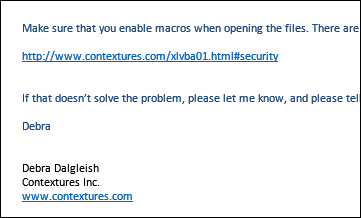
I keep a collection of draft messages in Outlook 2013, and copy and paste paragraphs from those messages, to save time when replying to email. For example, if someone says that one of my sample files doesn’t work, I can use this message, as part of my reply.

draft message to enable macros

Create a Draft Message

Today, I had to send a file to several people, and wanted to send each one individually. So, I created a draft message, with the subject line, file attachment, and the message body completed.

I saved that message, so it was stored in the Drafts folder. Then looked for a way to create copies, so I could send out the message several times, without a lot of copying and pasting. I just wanted to fill in the email address, and a personalized note at the top of each message.

Copy a Draft Message

Unfortunately, there’s no command for that, at least not that I could find, so I turned to my good friend, Google, to see what it could suggest. Fortunately, it found the MSOutlook Info site, run by MVP Robert Sparnaaij, and it had the answer.

Forward the Message

The website confirmed my suspicious that Outlook doesn’t have a built in way to send a copy of a draft, without removing the draft.

But, there was good news – you can use the Forward feature, to send a copy. I was dubious, because I didn’t want “FW:” to appear in the subject line. That would look spammy!

I followed the instructions, and it worked just fine, with no indication that I’d used a Forward. Here’s what I did, and you can click here to see Robert’s original post, which includes instructions for other versions of Outlook.

In Outlook 2013:

  • Create and save a Draft email
  • Open the Draft message
  • Press Ctrl + F (shortcut for Forward), to create a copy of the email
    NOTE: If the cursor is in the message body, the Find window will open, instead of creating a copy
  • Fill in the copy email address, and any other personalization
  • Send the copy, and close the draft – or create another copy to work on.

I hope that helps you save some time!

_____________

Really Old Windows

I just heard that the Start button (with a menu) will be back in Windows 8.1. Whew! Now I won’t have to reinstall an old version of Windows, to get that feature back.

Apparently it will be rolled out in an update, so I guess we’ll wake up one morning, and find the Start button back in its rightful place.

Which Versions Are You Using?

I’m running computers on three different versions of Windows:

  • Desktop is on Windows 7
  • Laptop is Windows 8.1 Pro.
  • Old laptop is running Windows XP, and I don’t have any plans to update. It’s working just fine, so why mess with it?

How about you? Do you have a variety of operating systems, or just one?

Clearing the Bookshelves

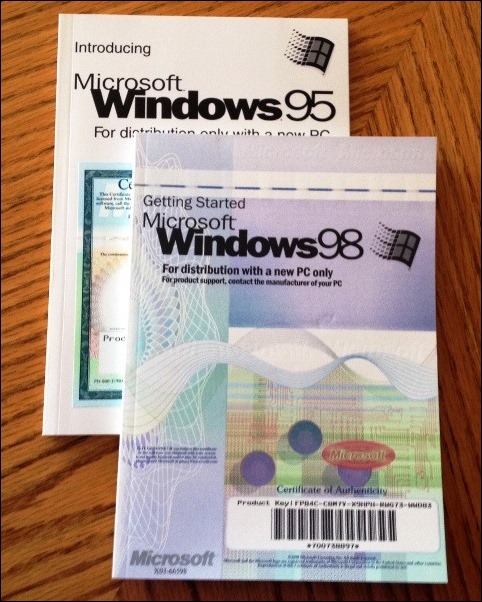
Coincidentally, I was cleaning out my office bookshelves today, and found these two old manuals, for Windows 95 and 98. I guess it’s safe to throw them out now.

windows9598

________________

The Overly Sensitive Mouse

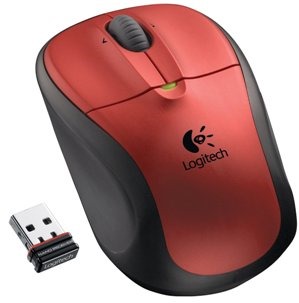
I’ve been using a Logitech Wireless M305 mouse for a couple of years, and it has worked very well. The only negative thing was that it goes through batteries very quickly.

But, it fits well in my hand, is lightweight and easy to maneuver, and has a very small USB receiver, which doesn’t get in my way. (I’ll complain about my laptop later – it’s an Asus N76V, with all the USB ports at the side front, instead of the side back.)

logitechmousem305

Recently, the mouse because overly sensitive, and double-clicked when it should have clicked, which made it very difficult to work. Instead of selecting a range of cells on a worksheet, I’ve find myself in one of them, editing the cell contents.

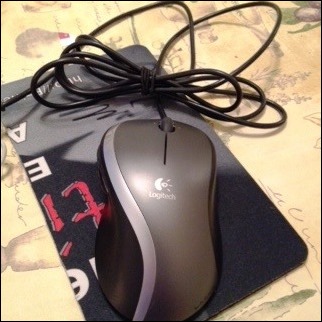
It’s okay if I’m overly sensitive, now and then, but I need my mouse to remain calm, and click reliably. So, I switched to an old wired mouse (M-BZ105A), which still works well, but has approximately 100 feet of cord. I guess it’s designed for old desktop computers where the USB might be in a unit on the floor, a few feet away.

logitechmbz105a

Finally, I got new batteries, and replaced the one in the M305, but it’s still super sensitive, and I can’t work with it. There’s nothing evident that could be causing this, so it’s time for a new mouse.

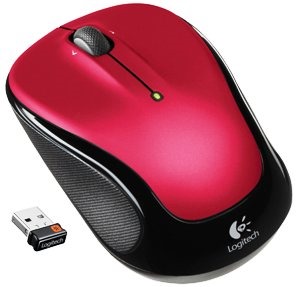
The local Staples doesn’t carry the M305 any longer, so I bought the newer M325 model and just started using it. It’s slightly lower and rounder than the old model, but feels almost the same. It’s responsive, and moves well, and not overly sensitive like that poor, overworked old mouse.

logitechmousem325

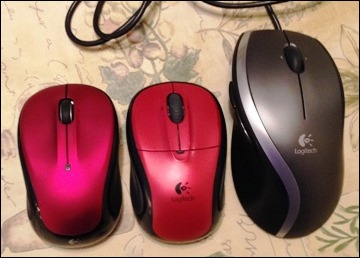
Both models are good for small hands, but you’d probably want something large if you have giant man hands. Here are all 3 lined up, and you can see how much bigger the old, wired mouse is. The new M325 is at the left – it looks pink, but it’s red. The old M305 is in the middle.

logitechmousecomparem305m325

Do you have a favourite mouse? I’m always wary of changing, once I find one that I’m comfortable with, but so far, so good. And maybe it will be easier on the batteries!

__________________

Happy New Year 2014

Is your new year off to a good start? Or is your head still a bit foggy after last night’s celebrations?

I usually stay home for a quiet New Year’s Eve, but last night we went out for a dinner, to a small pub within walking distance.

In the picture below, you can see the table decorations that greeted us. There were the usual New Year’s gadgets – noisemakers, horn and hat. There was also a box that advertised special cocktails – Cereal Shooters. It’s a strange way to advertise drinks for adults, but maybe I’m just too old now, to appreciate all the new fads.

IMG_3649

Anyway, Happy New Year, and all the best in 2014.

___________________

Excel Web Survey vs Google Form

Which number formats are most popular in pivot tables? I have my guess, but wanted to see what other people thought.

So, I decided to create a survey in SkyDrive, using the new survey builder feature. Well, it’s new to me – I can’t remember how long it’s been available. Things didn’t go well, but the survey is included at the end of this article.

Build the SkyDrive Survey

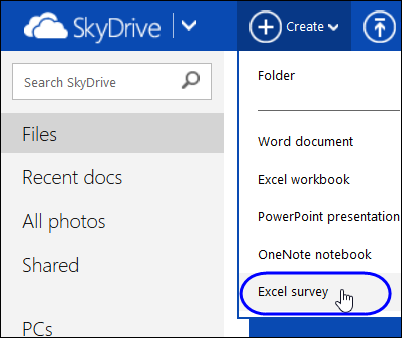
I logged into Skydrive, and found the commands to build the survey. You can start one from the main panel, which is handy.

skydrivesurvey

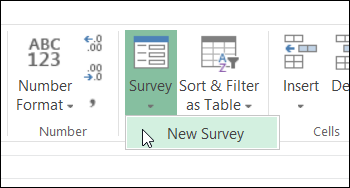
Or, start a survey from the Excel Web app.

skydrivesurvey03

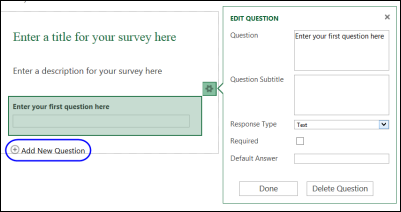
It was easy to create the questions – the survey builder has a clean layout, with the question setup opening at the side.

skydrivesurvey02

In a few minutes, my survey was ready to share.

Share the Survey

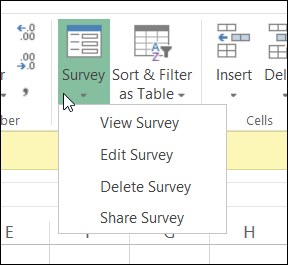
There was a button to create a link to the survey, so I entered that in Firefox, to test the survey.

skydrivesurvey01

It worked well, but the results aren’t date stamped, and there’s no built in charting of the results. Half the fun of taking a survey is in clicking that button, to see how other people have responded.

Also, I couldn’t see a way to create embed code, to put the survey on a blog. There might be a way to do that, but it’s not obvious to me.

So, that SkyDrive survey attempt was a disappointment!

Back to Google Docs

I headed over to Google, where I had created surveys before, and built the same survey in a couple of minutes.

To the Excel Web Survey’s credit, I did find it slightly easy to follow the flow of setting up the survey, and making edits to the questions.

Share the Google Survey

After building the survey, you can create a link, or get the code to embed it in a website. So, I followed the link, and filled in a survey, to make sure it was working correctly.

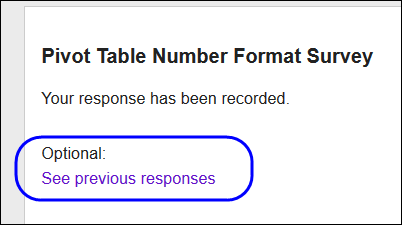
When you complete the survey, you’re offered the chance to see the results. Nice!

googlesurvey02

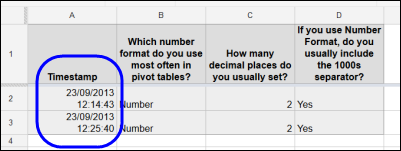
And, back in Google Docs, I can see the survey results, and each record has a date/time stamp.

googlesurvey01

I hope they add these features to the Excel Web survey tool soon, because they are deal breakers for me!

Please Take the Number Format Survey

Anyway, here is the completed survey form, so please answer the 3 questions to help me see which number formats are most often used in pivot tables. Thanks!

And here is the link, in case you can’t see the embedded form below.

______________

What I Learned This Week 20130427

What goes well with that first cup of coffee in the morning? Internet articles on my RSS feed! I find Excel stuff, web design ideas, small business tips, and lots more.

On the Contextures blog, I’ve listed a few interesting articles about the Excel formula fiasco. Here are a few other things that I found interesting this week, during my morning read.

Programmer Skill People Rarely Ask About

At the_codeist(), Andrew Wulf writes about an important skill that programmers need these days – the ability to find information online, and select the best option from a wide variety of posted solutions.

“You have to be able to enhance your brain with the collective brains of millions of fellow programmers, yet still pick the right brains to build on.”

Access 2013 Bible

access2013bibleDick Kusleika was too tired to write anything more than, “It’s here”, after he and Mike Alexander finished their epic book – Microsoft Access 2013 Bible.

No wonder Dick is tired – the book runs 1296 pages, and it weighs 1.6 pounds! I’ve written books that were much smaller than that, and am still recovering from exhaustion.

Congratulations to Mike and Dick, and if you buy this resource, I’m sure you’ll get far more than your money’s worth.

14 Ways to Acquire Knowledge

At the Brain Pickings blog, there is a list of 14 ways to acquire knowledge, from a 1936 book, You Can Do Anything! Apparently the author, James Morgan, was a bit eccentric – “in 1948, he publicly claimed to own outer space and went on to found the micronation of Celestia.”

The list has some sound suggestions though, such as “Walk Around It” and “Put in Order”. Of course, Excel is the obvious tool for that, but it hadn’t been invented in 1936.

Dandelions Will Grow Anywhere

Finally, I also learn things when I’m not at the computer. On a walk through the local conservation area yesterday, I learned that dandelions will grow anywhere, even under a rock. And they look pretty, when they’re not in your front lawn.

dandelions20130426

____________________

Solving the Mystery of the Disappearing Disk Space

Last December, I got a new laptop, and have been using it for most of my work since then. I store client files, blog posts, sample Excel files for my Contextures website, and a few too many digital photos.

The laptop has about 1 TB of disk space, so I should be okay for a while – or so I thought.

Almost Out of Space

Last week, I noticed that the C drive was almost at capacity – it was showing a red bar in Windows Explorer. Yikes! I didn’t ever run into that problem in the old laptop, and I used it for a few years.

What was filling up the drive? Had I really taken so many photos that I’d hit the limit?

Then I noticed that my storage space had been split into 4 drives, and the C drive only had 186 GB. So, I moved all the photos, and some of the documents to the other drives, and that temporarily solved the problem.

Can’t Open Outlook

Then, a crisis hit – Outlook wouldn’t open because it didn’t have enough disk space.  I moved a few more files to the other drives, emptied the Recycle Bin, and got Outlook running again. Whew!

But I can’t work like that – I don’t want to be constantly worrying about disk space. What was filling up the disk, and how could I get that stuff into a different drive?

Check the Folder Properties

I started through the folders again, checking each one’s properties, and looking for unusually large items. Was a program taking more that its share of the space? Was Windows 8 the culprit.

Finally, I found one of the Temp folders, in the AppData > Local directory, and it looked pretty full. Sometimes an installation file gets stuck in there, and they can be a few hundred MB in size.

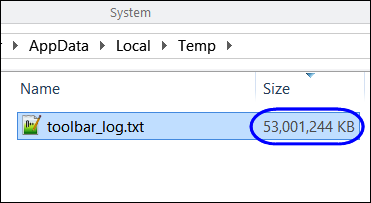
I sorted the list in descending order by file size, and was shocked to see this item at the top of the list. It was a text file, named toolbar_log.txt, and it was 53 GB!
toolbar_log.txt

Of course, Notepad++ couldn’t open it, because it was so huge, so I couldn’t see what was in the file. A Google search showed that it was a file created by the AVG security software, and other people were complaining about its size.

Delete the Rogue File

The online information indicated that it was safe to delete the file, but AVG would just recreate it.

So, I did, and as predicted, the file came back. As I watched in Windows Explorer, the file size increased every few seconds.

I deleted it again, and followed the advice in one of the online comments – I set the file to Read Only.

Problem Solved

So far, so good – the file is about 500 KB, and holding. I haven’t noticed any effects from changing the file to Read Only, except for the benefit of 53 GB of free space on my C drive.

I’ll sort out the folders and files, to spread things around, not that the crisis is over. And I’ll add a few Libraries, to make it easier to get to my files, after they’re moved.

I hope you never run into this problem, but if you have AVG installed, you might want to check for a file named toolbar_log.txt – and make sure it isn’t eating up your space.

___________