Spot the Differences

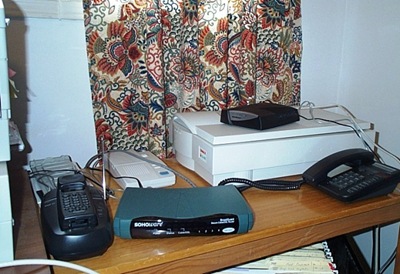
Today I was looking through my photos, and found this shot of my office peripherals table, taken in November 2001.

DebOffice2001

I had two large phones, a huge scanner, an answering machine, giant router, and a business card Rolodex file. You can see the top of a filing drawer under the table, and the corner of my Apple printer at the left.

There’s a modem sitting on top of the scanner, but I’m not sure why it’s there. And yes, despite its enormous size, that’s just a scanner, not an all-in-one machine that also does the laundry and cooks dinner.

Today’s Peripherals

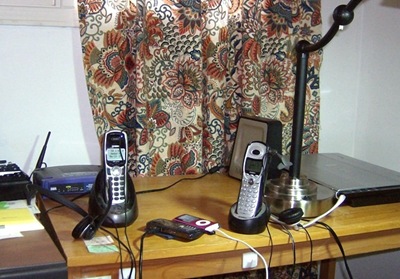
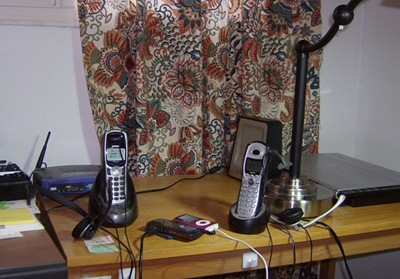
Here’s a picture of the same table, taken today, almost 9 years later. The current scanner is much smaller, as are the two phones. Each phone has a headset plugged in, which makes it easier to talk and type at the same time.

DebOffice2010

The filing drawer is gone, and you can’t see it, but there’s a UPS under the table. It has saved me from considerable aggravation any time the power has flickered, because it keeps the computer and monitor running while I save and close my open files.

A new modem is under the printer table, and an external hard drive, lamp, BlackBerry and iPod have been added. The business card file is still there, but moved to the printer table. Funny that it has survived, while lots of high tech stuff has come and gone.

Your Office

What did your office look like 9-10 years ago? What does it look like now?

___________

Like Google Reader’s Track Changes? Too Bad!

In January, Google proudly announced a new feature in Google Reader — Track Changes. You could quickly set up an RSS feed for any page that didn’t have one, and be alerted when that page was changed.

I liked the feature, and set up feeds for several pages. It’s great for individual pages on a website, when you’re not interested in every update to the site.

Unfortunately, Google is killing the track changes feature at the end of this month. There’s no mention of the reason it’s disappearing, and my fist shaking doesn’t seem to have any impact on their decision.

The Google Reader Blog did provide a link to a similar service, Page2RSS, so I’ll switch to that. Now I have to find those special feeds, in my long list of feeds. But I’m not bitter about this! 😉

And remember, export your RSS feed list occasionally, so you have a backup.

_________

Testing the Office Live Excel Embedding

Today I read that you can now embed Excel files into your blog, by using Office Live. After I figured out how to log in to my account (it’s been a while), I created an Excel file to test here.

Update: Here are the instructions for embedding Excel files (thanks JP!)

So, here’s my Excel file — a very simple table with a Total column. I’ve turned on interactivity, so everyone should be able to edit the numbers.

If you try to edit the numbers, please let me know if you were successful. Thanks!

__________

How NOT to Offer a Blog Guest Post

Some of the blogging expert sites suggest that you write guest posts on popular blogs, to get a bit of publicity for your own blog. Today I got an email from someone who offered to supply a guest post for my Excel website.

"I figured you might be interested in including a guest article for contextures.com about the story of an Ann Arbor couple that ‘greened’ up their wedding."

As tempting as that sounds, I’ll pass, thanks.

What Went Wrong?

How can I pass up this irresistible offer? It was self-centred, completely off-topic, and had a "do-gooder" approach that made me suspicious. Here are just a few things the author did wrong:

  • didn’t bother to find out who owns the site, and there was no salutation in the email
  • obviously has no clue what my site is about — no mention of how the article would fit the site’s theme
  • in first 3 sentences, "my" and "I" used 8 times, versus "you" and "your" used once each.
  • return email address has event planning theme, but the article pitch was for environmental awareness –"With your support we can educate the public about the dangers of excessive wastes and hopefully help people lower their carbon footprints."

What Could Go Right?

I don’t really have guest posts on my blog, but have written about a few sample workbooks and macros that people have sent to me. If someone really wanted to do a guest post on my Excel blog, a random email wouldn’t be the first time I’d ever heard their name. They’d have added comments to the blog in the past, or emailed me previously, without pitching something.

Someone who wanted to write a guest post would know that my blog is about Excel, and would suggest an article tied to that. For example, instead of ‘greening up’ a wedding, an article about tracking wedding costs in Excel would be relevant. Or, for a green theme, the article could explain how to calculate a cost comparison of energy sources in Excel.

Also, if you had an article to share on my blog, you’d tell me how your article will help my blog’s readers, not you. What interesting Excel tips will you share, or fabulous new template design?

Finally, the author should include a link to his/her website or blog, and be clear about its purpose. Don’t try to guilt me into posting your article, by claiming it will help the earth, if your site is all about selling something. I’m not opposed to business, but I don’t like feeling conned.

___________

Personalized Twitter Background

While reading my morning RSS feeds, I saw an article about creating a custom Twitter background. Since I didn’t have anything else planned for the day, I decided to attempt an update on my profile.

Previously, I had a picture of a lovely orange day lily, with the Contextures web address added at the lower left side. It was better than using one of the standard backgrounds, but didn’t reveal too much about me, or what I do.

The RSS feed article had a link to a blog with Twitter background templates, and instructions for creating your own. My Photoshop skills are minimal, and I’m using a really old version of Photoshop, but I plunged in anyway.

The article gave me some ideas for adding things to my background, and links to some graphic effects (although a couple of them were dead pages).

Instead of lined paper, a coffee mug and stains, I went with the cover of one of my pivot table books, the Contextures logo, and a goofy picture of me. (Yes, I know that every picture of me has some level of goofiness!)

Then I added my email address and Contextures address. They aren’t clickable links, but at least they’re on the page for reference. The image background is white, and I changed the Twitter theme colours to have a white background too, so it will blend in.

Here’s the finished background, which I saved in png format, and uploaded to my Twitter profile. It’s not great art, but it tells people a little bit about me, and livens up the page. If I can manage to do this, imagine what you can do!

DebTwitterSm

_________

Access Database is Read Only

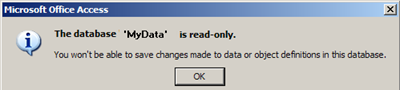
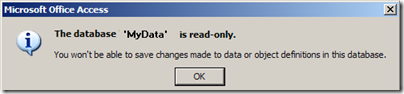
When I tried to open one of my main Access databases today, I got the alarming message, “The database ‘MyData’ is read-only. You won’t be able to save changes made to data or object definitions in this database.”
readonly01

I closed it, and tried to open it again, making sure that I hadn’t accidentally selected the Read Only option.

More Troubleshooting Steps

A Google search turned up some dire warnings that this could be a sign of corruption, so I created a new database, imported all the tables, queries, forms, and everything else, and all seemed well.

So, I renamed the old version, and gave the new version the same name as the previous one, so my Windows Explorer shortcuts and connections would work.

Is It Locked?

As soon as I opened the new copy of the database, the “read-only”problem was back. So, I decided to look for “.ldb” files.

When an Access database is open, it automatically creates an ldb file. This file has the same name as the database, with an “.ldb” or “.laccdb” extension. Later, when the database closes, that ldb file is automatically deleted.

  • NOTE: Access uses an ldb file to keep track of which records in the database are currently locked, and by whom. (Records are locked while someone is editing the record.) Maybe you’ve seen a “Write Conflict” warning message when you try to save a record, because someone else is changing that record, or a record close to it.
  • You can read more about these Access locking files on the Microsoft website.

Sometimes those ldb files don’t get deleted, when a database closes, and that can cause problems.

So, I looked for errant ldb files, that were mistakenly telling the database someone else had it open. There was nothing.

Connection Problem

Finally, it dawned on me — connections could be the problem.

I had an Excel file open, and it queried the database, so maybe that was the problem. I closed the Excel , re-opened the database, and it worked fine.

Later, if I tried to open the database when the Excel file was open, the database was read only.

Fix the Connection

Well, I don’t have the two files (Excel and Access) open simultaneously too often, but I wanted to have that option available.

So, I checked the connection strings for the queries and found that they included this setting:

  • Mode=Share Deny Write

I changed the setting to this instead:

  • Mode=Read

and the files now live in harmony (so far).

Where Are the Connection Strings?

To find the connection strings in Excel:

  1. Click the Data tab on the Ribbon, and then click Connections.
  2. On the Workbook Connections dialog box, click a connection name in the list
  3. Click the Properties button, to open the Connection Properties dialog box.
  4. Click the Definition tab, and edit the Connection String.
    • The strings that I edited were for Provider=Microsoft.ACE.OLEDB.12.0
    • The Mode setting might not appear in other types of connections.

Why Share This?

This information is probably of no interest to you, unless you landed here in a Google search for this error message:

  • “You won’t be able to save changes made to data or object definitions in this database”.

But, one day in the future, I might run into this error again, and maybe I’ll find my own solution when I do a Google search.

Don’t laugh — it’s happened to me before! (more than once!)

___________

Google Search Cheat Sheet

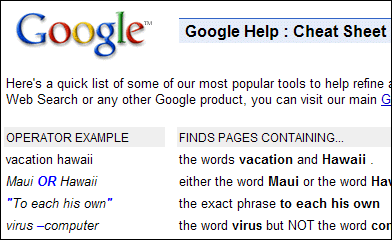
Did you know that there’s a Google search cheat sheet?

googlecheat01

Even though I spend several hours a week searching for things in Google (all of them business-related and highly intellectual), this was the first I’d heard about a cheat sheet. There are a few new (to me) tricks that should be helpful in future searches.

Special Operators

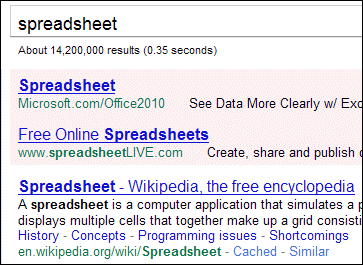
For example, you can use the ~ operator to find synonyms. If you search for "spreadsheet", a Wikipedia article on spreadsheets is at the top of the search results (after the sponsored links).

googlecheat02

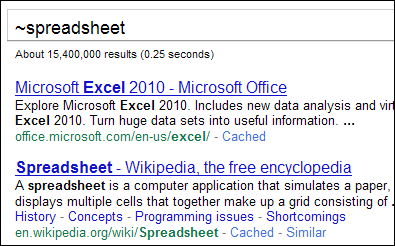
Add the ~ operator, and Excel is at the top of the list, with no sponsored links.

googlecheat03 

The Google Calculator

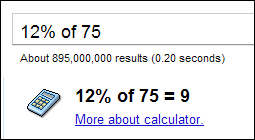
There’s a built-in Google calculator, and did you know that you can type % of as an operator? That’s handy, and news to me!

googlecheat04

What’s New to You?

Did you know all of the items on the Google Cheat Sheet, or are some of them new to you?

___________

Add Captions to a YouTube Video

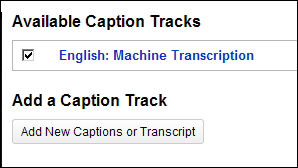
I’m taking an online CSS course at SitePoint, and the instructions include some YouTube video tutorials. Yesterday’s video included captions, and so I did some poking around, to see how they were added.

To add the captions, you need a specially formatted file, with text, or text and time points. You can create this file yourself, or get some help from YouTube.

Request a Machine Transcript

For newer video, the transcripts are automatically created after you upload the video. You can skip this section, and go to the Download the Transcript section, below.

YouTubeCaptions08

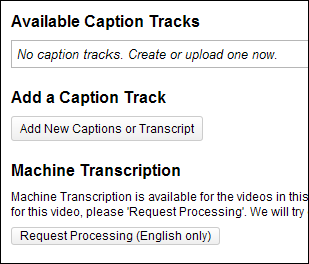
For older videos, you can request a machine transcript of the audio track.

  • Log in to YouTube, and view one of the videos that you’ve uploaded.
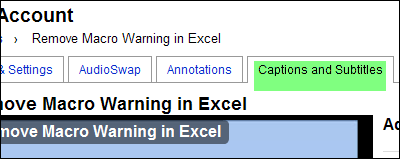
  • Above the video, click Captions and Subtitles, to see the options for adding captions or a transcript.

YouTubeCaptions00

  • Click the button for Request Processing (English only).
  • Then, wander off and do something else for a day or two, while the transcript is prepared.

 YouTubeCaptions07

Download the Transcript File

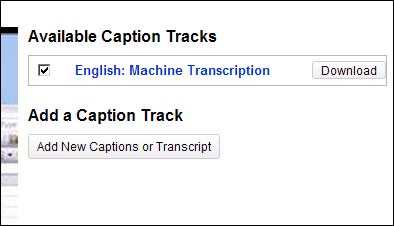
The message says it will take a few days to prepare the transcript, but I checked less than 24 hours later, and my transcript was ready.

  • Click the Download button, and save the file (in sbv format) to your computer.

YouTubeCaptions01

Revise the Transcript File

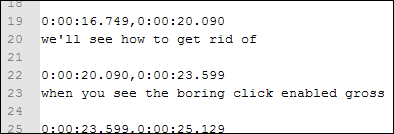
I opened the file in Notepad++, to see what it looked like. Some of the transcript looked fine, like line 20 shown below. Other text, like line 23, weren’t so good. Sure, some of the video might be a bit boring, but none of it is gross!

YouTubeCaptions02

So, I listened to the video, while making some corrections to the transcript. For example, line 23 was changed to, "When you see the warning, click Enable Macros."

Then I saved and closed the transcript file.

Upload the Transcript File

To upload the revised transcript file:

  • Log in to YouTube, go to the video page, and click the Captions and Subtitles tab.
  • Click Browse, and select the transcript file.
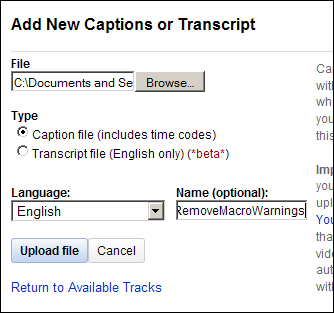
  • Select a Type — either Caption File or Transcript File. The file that YouTube created for me had both times and text, so I selected Caption File.

For the Type option, YouTube describes the difference between a caption file and a transcript file:

  • A "caption file" contains both the text and information about when each line of text should be displayed.
  • A "transcript file" on the other hand just contains the text of what was said in the video. If the video’s in English, YouTube can use speech processing algorithms to determine when the words in a transcript should be displayed.
  • Add a file name (optional), then click Upload File

YouTubeCaptions03

See the Captions

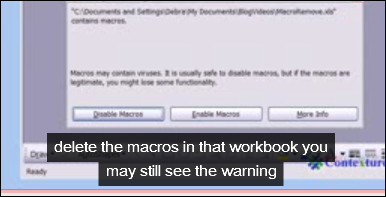
On the video, click the Play button, and the captions start rolling.

YouTubeCaptions05

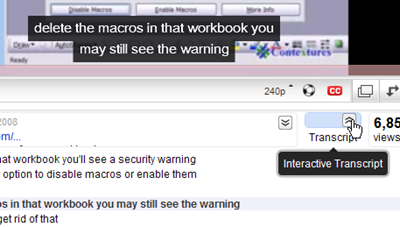
There’s a Transcript button that you can click, to see the entire transcript. It’s interactive, so you can click on a line, and go to that point in the video.

 YouTubeCaptions06 

Pros and Cons

There were many things to correct in the transcript file, but it was much easier to use that file, with the times added, than to create a transcript from scratch. Also, there was some entertainment value in seeing how my tutorial was translated.

The captions block the bottom 1/2" or so of the screen, and that might cover some of the tutorial material. However, for anyone with English as a second language, or a hearing impairment, the captions will probably be a useful addition to the video.

The Transcribed Video

Here’s the video, so you can see the results for yourself. If you can’t see the captions in this embedded video, you can go to the YouTube page.

What do you think of the captions? Is it something you’d add to your own videos?

______