
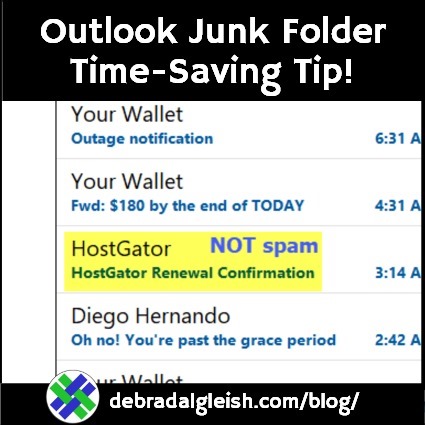
I get tons of spam email in Outlook, even though I’ve set up countless rules to deal with it. Instead of spending time on useful work, I have to scan that folder full of junk, in case any legitimate messages ended up in they accidentally. But I finally found a setting that has been a big help this week.
Outlook Junk Folder Messages
Before I changed this setting, I’d open the Junk folder, and quickly scroll through a long list of messages.
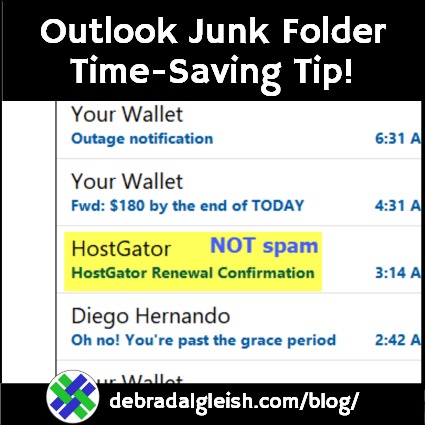
In the screen shot below, there’s a small part of a recent list.
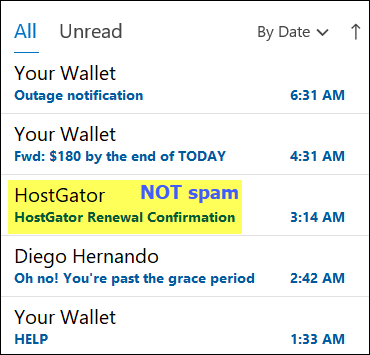
It has multiple scam messages from “Your Wallet”, and “Diego Hernando”, and lots of others, pretending to be banks, or retail stores, or important government officials.
Buried in the middle, I’ve highlighted a legitimate message from Hostgator, with details about a domain renewal.
Fortunately, I spotted that message, and marked it as “Not Spam”.
But I’ve probably missed many legitimate emails over the years, because of Junk folder overload.
Outlook Folder Sorted By Date
By default, Outlook folders have the messages sorted by date.
Is that always the best setting?
- Inbox – Maybe: Sorting by date lets you quickly spot the newest messages.
- Maybe a client or co-worker needs your help urgently!
- Junk – No: I don’t care when the spam messages arrive.
Instead of the date, I need to focus on who each message is FROM.
Sort Junk Folder By Name
It’s embarrassing that I left the sort setting on Date for so long. But, I’ve finally smartened up, and fixed the problem
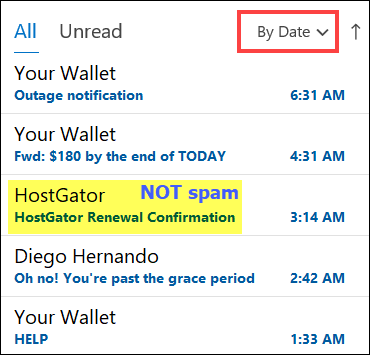
Here’s how to change the sort order in the Outlook Junk folder, to focus on WHO sent the email:
- At the left, in the list of folders, click on the Junk folder
- In the centre panel, all the current messages are listed
- At the top right of the list, where is says “By Date”, click the drop-down arrow
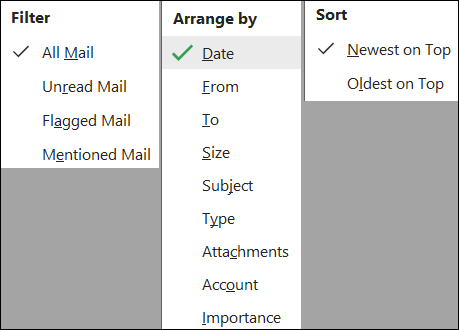
- A drop-down list appears, with settings in 3 categories: Filter, Arrange By, Sort By
- In the Arrange By section, click on the From option, to select that setting
In the screen shot below, I’ve put the sections side-by-side, but in Outlook it’s one long list.
Junk Folder Items Sorted By From
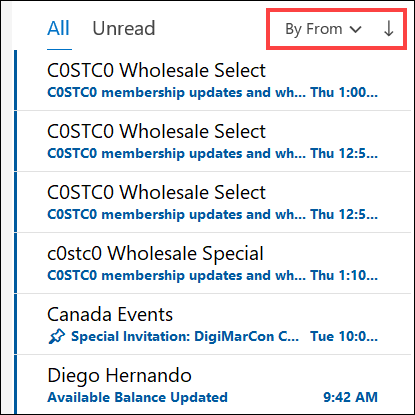
Now that the Junk folder is sorted by “From”, it’s much easier to spot any legitimate emails in the list of messages.
In the screen shot below, I can quickly skim past all the prolific spammers, like Diego Hernando, and the fake Costco emails.
It’s made my morning email routine much easier, and I can move any legitimate emails back to the inbox.
Get Rid of the Junk
After I move any real messages back to the Inbox, I follow these steps to get rid of the junk mail:
- In the list at the left, right-click on the Junk folder, then click on Empty Folder
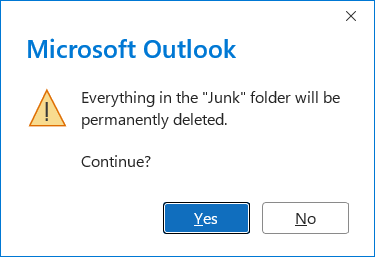
- When the confirmation appears, click the Yes button, to permanently delete the Junk folder messages.
- Everything in the “Junk” folder will be permanently deleted. Continue?
And then you can get back to your real work, instead of wasting extra time on your junk mail.
_______________
Quickly Check Outlook Junk Folder for Non-Spam Messages
________________
I’ve just implemented this. I don’t get a lot of false positives, but with this process it will take seconds per day to be sure. Thanks for the tip.
You’re welcome, Dick, and thanks for letting me know that it might help with your junk mail too!