
All day, every day, I make notes in the Notepad++ application while I’m working. First thing in the morning, I open my Daily Notes file, using a desktop shortcut.
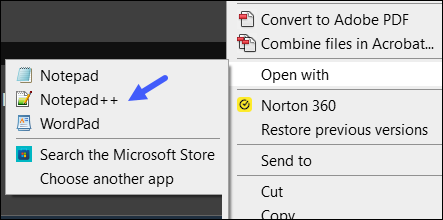
It’s quick and easy – right-click the desktop icon, point to the “Open with” command, and then click on Notepad++.
Double-Click Problem
Unfortunately, if I accidentally double-click on .txt file’s icon, the Windows Notepad application opens, instead of Notepad++.
After ignoring this inconvenience for way too long (decades?), I finally fixed that double-click problem.
I made Notepad++ the default program for opening .txt files in Windows, instead of Notepad. You can see the steps in the next section.
- Fun Fact: Microsoft launched Notepad in 1983, and included it when you bought a $195 mouse!
Set Notepad++ As Default
Here are the steps that I followed, to set Notepad++ as the default program to open txt files in Windows 10.
- Tip: See my icon image warning, at the end of this article, if you don’t like bright colours!
In Windows Explorer, or on the Desktop:
- Right-click on a .txt file
- In the pop-up menu, click Properties (at the bottom of the list)
- In the Properties window, go to the General tab
- Near the top right, click the Change button
Choose an App
A new window opens, with the title, “How do you want to open .txt files from now on?”
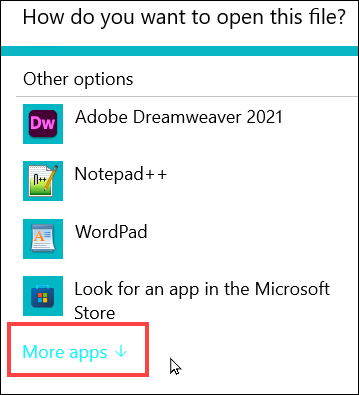
- Scroll to the bottom of the list, and click More apps
The bright blue text on a white background makes it hard to read!

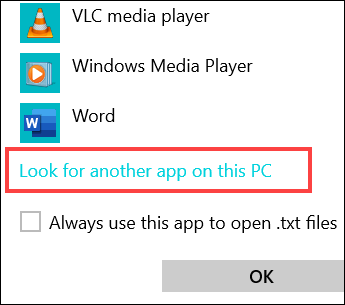
- Next, scroll to the bottom of the expanded list
- Click on the link to Look for another app on this PC
Window: Open With
When the Open With window appears, it probably shows the Windows > Program Files folder
- In that folder, scroll down to find the Notepad++ folder
- Tip: If you don’t see Notepad++, go up one level, to Windows, then open the Program Files (x86) folder.
- That’s where Notepad++ is stored on my computer
- Tip: If you don’t see Notepad++, go up one level, to Windows, then open the Program Files (x86) folder.
- Double-click on the Notepad++ folder, to open it
- In the folder, locate the Notepad++.exe file
- Double-click on it, to set that as the default program to open .txt files

Warning: Bright Desktop Icons
Here’s a warning for you, if you like a clean, minimalist environment!
After you change the default .txt program to Notepad++, all the related icons will change, to show the Notepad++ icon, with the little green chameleon on them.
- Double-click on a text file icon now, and the file opens in Notepad++
- Hooray!

I’ve got lots of text file shortcuts on my desktop, so it was a bit jarring when all the plain white icons changed to bright green, yellow and white icons!
After a couple of days you might get used to the new look, but if not, you can change the shortcut icons.
That’s what I did — I changed a few of the individual icons back to the plain notepad. Here are the steps:
- Right-click the desktop icon that you want to change
- In the pop-up menu, at the bottom of the list, click Properties
- When the Properties window opens, go to the Shortcut tab
- About halfway down, click the Change Icon button
- The first icon was the plain notepad, so I clicked the OK button to use that
- You can scroll to the right, and choose a different icon, if you prefer
- Click OK, twice, to close the windows
The selected desktop shortcut now has the new icon that you applied.
‘—————————————-