
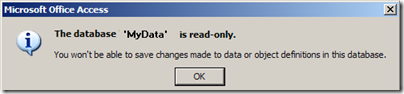
When I tried to open one of my main Access databases today, I got the alarming message, “The database ‘MyData’ is read-only. You won’t be able to save changes made to data or object definitions in this database.”
I closed it, and tried to open it again, making sure that I hadn’t accidentally selected the Read Only option.
More Troubleshooting Steps
A Google search turned up some dire warnings that this could be a sign of corruption, so I created a new database, imported all the tables, queries, forms, and everything else, and all seemed well.
So, I renamed the old version, and gave the new version the same name as the previous one, so my Windows Explorer shortcuts and connections would work.
Is It Locked?
As soon as I opened the new copy of the database, the “read-only”problem was back. So, I decided to look for “.ldb” files.
When an Access database is open, it automatically creates an ldb file. This file has the same name as the database, with an “.ldb” or “.laccdb” extension. Later, when the database closes, that ldb file is automatically deleted.
- NOTE: Access uses an ldb file to keep track of which records in the database are currently locked, and by whom. (Records are locked while someone is editing the record.) Maybe you’ve seen a “Write Conflict” warning message when you try to save a record, because someone else is changing that record, or a record close to it.
- You can read more about these Access locking files on the Microsoft website.
Sometimes those ldb files don’t get deleted, when a database closes, and that can cause problems.
So, I looked for errant ldb files, that were mistakenly telling the database someone else had it open. There was nothing.
Connection Problem
Finally, it dawned on me — connections could be the problem.
I had an Excel file open, and it queried the database, so maybe that was the problem. I closed the Excel , re-opened the database, and it worked fine.
Later, if I tried to open the database when the Excel file was open, the database was read only.
Fix the Connection
Well, I don’t have the two files (Excel and Access) open simultaneously too often, but I wanted to have that option available.
So, I checked the connection strings for the queries and found that they included this setting:
- Mode=Share Deny Write
I changed the setting to this instead:
- Mode=Read
and the files now live in harmony (so far).
Where Are the Connection Strings?
To find the connection strings in Excel:
- Click the Data tab on the Ribbon, and then click Connections.
- On the Workbook Connections dialog box, click a connection name in the list
- Click the Properties button, to open the Connection Properties dialog box.
- Click the Definition tab, and edit the Connection String.
- The strings that I edited were for Provider=Microsoft.ACE.OLEDB.12.0
- The Mode setting might not appear in other types of connections.
Why Share This?
This information is probably of no interest to you, unless you landed here in a Google search for this error message:
- “You won’t be able to save changes made to data or object definitions in this database”.
But, one day in the future, I might run into this error again, and maybe I’ll find my own solution when I do a Google search.
Don’t laugh — it’s happened to me before! (more than once!)
___________
All I can say is that I appreciate that you shared this. I’m explaining to my client why a database may be what they’re looking for (they’re on the learning fast track as about two weeks ago they had never heard of pivottables), and as part of that I prepared an tiny Access DB with a couple of tables allong with a MSQuery and an Excel based query. What you wrote may help me prevent unnecessary frustration and time.
Thanks Bob! I hope you don’t encounter the problem (only affects some types of queries), but at least you’ll have a solution to try if you do hit it.
Ok this is great doing the train application between the Access dB and the Excel I now see why we have had to close the Excel sheet when we wanted to add some more data to the dB. However, sorry I’m in a Duh mode, how do you change or find the “Mode=Share Deny Write” – I changed the setting to – “Mode=Read” string or info.
Fred, I added another section to the blog post, to show where the connection string information is located.
Hi Debra — I am trying to create a very basic Access DB for a new role I have inherited “Domain Management” and my friend Andy Pope recommended that I reach out to you for direction. The main categories would be: Domain Name, Registrar (name, URL, address/phone), Region, Domain Extension, Purchase/Renew Date, Expiry Date, Costs, Invoice Date, Invoice Number, Purchase Order Number, Payment Date, and Domain Regional Register (DRR), Primary DNS#, Secondary DNS#, Tertiary DNS#, Hosted at (Registrar or Monsanto) check box may be?) do you have something basic for these simple items? Thank you so much! Flo
Hi Flo,
I don’t have a sample database that’s similar to what you described, but you could take a look at the sample databases and templates that come with Microsoft Access. Even if there’s nothing for domain management, you’ll get some ideas on how to set it up. There are Microsoft forums where you can ask questions if you get stuck, and someone will probably be able to help.
Hi Debra,
I have this problem, but am using Excel 2003. I can’t seem to find the connection strings in 2003. Please help
Mim, you could try Ron Coderre’s Pivot Play add-in, to see and edit the connection strings:
http://www.contextures.com/xlPivotPlayPLUS01.html
Thank you! I had 5 connections in one workbook and just one of them was marked as Share Deny Write, and I couldn’t figure out what the problem was! Your post helped save me hours of frustration.
You’re welcome! Thanks for letting me know that it helped.
Cheers Debra, you just help me fix a problem. Thanks for sharing.
Jason
I had pretty much the same issue you had. I was suspecting that the mode in the connection string was the culprit. Thanks for confirming that it works with mode=read.
Saved me some more frustration. 🙂
Mike
You are an ANGEL! I love posts like this. We have a database that is accessed constantly when customers log in and download content. When I created an Excel file that connected to use my Access, it locked out the database so it wouldn’t log customer downloads anymore. I saw the mode in the connection string and had no idea what value I wanted in there. This was the solution to my problem. Thanks a million!
Hi Deb,
I just encountered this “read-only” problem with my access 2007 database, while i was working on my visual basic, but at the same time, i had my microsoft word opened and it’s been opened for a couple days.
by the way, i don’t seem to find the “data tab on the ribbon” you wrote about. where’s that located please?
Thanks for your help in advance!
Tom
Tom, the Data tab is on the Excel 2007 Ribbon. In my Excel file, I had made a connection to the database, and that’s where I changed the connection.
If you’re not using Excel when the database is showing as Read Only, maybe there is a different problem.
Thanks a lot, really useful! 🙂 u saved me a lot of time!
Debra, A coworker and I were using the same Access queries in PivotTables. His open spreadsheets connected through External Source locked the table, my connection through Microsoft Query did not. You are a smart girl. Thank you. PS – I posted credit to your solution on Microsoft Answers. Mark
Mark, thanks, I’m glad it helped you solve your problem!
Hi Debra;
I’ve been getting the “read only” error; I have a VB.Net App and Access DB; but my problems are:
1) Due to complex queries I decided to have SQL Server-Linked tables in Access, the issue is that a linked table name is changed inside default folder folder, but if you move the file outside (ie. desktop) the name is changed again. shown the correct table name.
2)Is similar to the first one; but in this case the “read only” warning is shown.
Both issues are in Windows 7; I’ve tried changing folder permissions but it doesn’t work;
Have any idea? Thanks your help.
Hi Debra – Great tip. However, even after I have changed the mode to “Read”, Excel somehow maintains the exclusive lock, disabling Access DB update by other sources. I am on Office 2007 and using ACE. Could there by anything else I could do to have Excel not lock-up the entire DB? TIA
I work with Access 2010 and when I opened my database it was read only….don’t know what I did wrong when I closed it after working on it for 3 hours, but I cannot add or edit the database anymore…….what can I do
@Linda, right-click on the database file in Windows Explorer, and click Properties. Is Read Only checked?
If that’s not the problem, is the database saved in a folder where you have write privileges? Maybe you moved it to a different folder after closing the file.
As a last resort, you could create a new database, and import everything from the Read Only one.
Thanks Debra D, really appreciate your help. Googled it , found your problem and I like the way you keep it simple and straight to the point. Saved me lots of time!
Thanks for posting this … it really helped
Thank you this is the exact solution I needed!
I have an Excel spreadsheet attempting to write to a network based Access DB (accdb). There is only one table in the DB – no queries. There are only 4 fields in the table – ID (Accessed assigned), two numbers, and one text.
My Excel VBA does
Dim db As DAO.DATABASE, rs As Recordset
Then opens the DB
Set db = OpenDatabase(DBFullName)
It works fine from my system – I can read and write with no problem. From other people’s systems they can only read the data, but they cannot write.
They have permissions to the network drive. To verify this I had one of them copy a file to the same directory as the DB – no problem, then they deleted it. The Access DB Advanced Option are configured as Default Open Mode; Shared. The rest of the options are defaults. The file permisions on the DB file are NOT read only.
What am I doing wrong? Is there a special db_FLAG that I should be using?
OH my gosh… thank thank thank you.. i didn’t even think it could be i had the file open in Excel linked… spent 30 min before i came accross your answer.
You’re welcome! Glad it helped.
Really useful article, thanks!
Thanks!